Tampilkan postingan dengan label Configurasi. Tampilkan semua postingan

Rabu, 16 Mei 2012

How to Load balancing Mikrotik - NTH mode

Introduction

This example is improved (different) version of round-robin load balancing example. It adds persistent user sessions, i.e. a particular user would use the same source IP address for all outgoing connections. Consider the following network layout:
LoadBalancing.jpg

Quick Start for Impatient

Configuration export from the gateway router:
/ ip address
add address=192.168.0.1/24 network=192.168.0.0 broadcast=192.168.0.255 interface=Local 
add address=10.111.0.2/24 network=10.111.0.0 broadcast=10.111.0.255 interface=wlan2
add address=10.112.0.2/24 network=10.112.0.0 broadcast=10.112.0.255 interface=wlan1

/ ip firewall mangle
add chain=prerouting src-address-list=odd in-interface=Local action=mark-connection \
  new-connection-mark=odd passthrough=yes 
add chain=prerouting src-address-list=odd in-interface=Local action=mark-routing \
  new-routing-mark=odd passthrough=no
add chain=prerouting src-address-list=even in-interface=Local action=mark-connection \
  new-connection-mark=even passthrough=yes 
add chain=prerouting src-address-list=even in-interface=Local action=mark-routing \
  new-routing-mark=even passthrough=no
add chain=prerouting in-interface=Local connection-state=new nth=2,1 \ 
    action=mark-connection new-connection-mark=odd passthrough=yes
add chain=prerouting in-interface=Local action=add-src-to-address-list \
  address-list=odd address-list-timeout=1d connection-mark=odd passthrough=yes 
add chain=prerouting in-interface=Local connection-mark=odd action=mark-routing \ 
    new-routing-mark=odd passthrough=no
add chain=prerouting in-interface=Local connection-state=new nth=2,2 \ 
    action=mark-connection new-connection-mark=even passthrough=yes
add chain=prerouting in-interface=Local action=add-src-to-address-list \
  address-list=even address-list-timeout=1d connection-mark=even passthrough=yes 
add chain=prerouting in-interface=Local connection-mark=even action=mark-routing \ 
    new-routing-mark=even passthrough=no

/ ip firewall nat 
add chain=srcnat out-interface=wlan1 action=masquerade
add chain=srcnat out-interface=wlan2 action=masquerade

/ ip route 
add dst-address=0.0.0.0/0 gateway=10.111.0.1 scope=255 target-scope=10 routing-mark=odd
add dst-address=0.0.0.0/0 gateway=10.112.0.1 scope=255 target-scope=10 routing-mark=even 
add dst-address=0.0.0.0/0 gateway=10.112.0.1 scope=255 target-scope=10 

Explanation

First we give a code snippet and then explain what it actually does.

IP Addresses

/ ip address 
add address=192.168.0.1/24 network=192.168.0.0 broadcast=192.168.0.255 interface=Local
add address=10.111.0.2/24 network=10.111.0.0 broadcast=10.111.0.255 interface=wlan2 
add address=10.112.0.2/24 network=10.112.0.0 broadcast=10.112.0.255 interface=wlan1 
The router has two upstream (WAN) interfaces with the addresses of 10.111.0.2/24 and 10.112.0.2/24. The LAN interface has the name "Local" and IP address of 192.168.0.1/24.

Mangle

/ ip firewall mangle 
add chain=prerouting src-address-list=odd in-interface=Local action=mark-connection \
  new-connection-mark=odd passthrough=yes 
add chain=prerouting src-address-list=odd in-interface=Local action=mark-routing \
  new-routing-mark=odd 
 
All traffic from customers having their IP address previously placed in the address list "odd" is instantly marked with connection and routing marks "odd". Afterwards the traffic is excluded from processing against successive mangle rules in prerouting chain.

/ ip firewall mangle 
add chain=prerouting src-address-list=even in-interface=Local action=mark-connection \
  new-connection-mark=even passthrough=yes 
add chain=prerouting src-address-list=even in-interface=Local action=mark-routing \
  new-routing-mark=even 
 
Same stuff as above, only for customers having their IP address previously placed in the address list "even".

/ ip firewall mangle 
add chain=prerouting in-interface=Local connection-state=new nth=2,1 \ 
    action=mark-connection new-connection-mark=odd passthrough=yes
add chain=prerouting in-interface=Local action=add-src-to-address-list \
  address-list=odd address-list-timeout=1d connection-mark=odd passthrough=yes 
add chain=prerouting in-interface=Local connection-mark=odd action=mark-routing \ 
    new-routing-mark=odd passthrough=no
 
First we take every second packet that establishes new session (note connection-state=new), and mark it with connection mark "odd". Consequently all successive packets belonging to the same session will carry the connection mark "odd". Note that we are passing these packets to the second and third rules (passthrough=yes). Second rule adds IP address of the client to the address list to enable all successive sessions to go through the same gateway. Third rule places the routing mark "odd" on all packets that belong to the "odd" connection and stops processing all other mangle rules for these packets in prerouting chain.

/ ip firewall mangle 
add chain=prerouting in-interface=Local connection-state=new nth=2,2 \ 
    action=mark-connection new-connection-mark=even passthrough=yes
add chain=prerouting in-interface=Local action=add-src-to-address-list \
  address-list=even address-list-timeout=1d connection-mark=even passthrough=yes 
add chain=prerouting in-interface=Local connection-mark=even action=mark-routing \ 
    new-routing-mark=even passthrough=no
 
These rules do the same for the remaining half of the traffic as the first three rules for the first half of the traffic.
The code above effectively means that each new connection initiated through the router from the local network will be marked as either "odd" or "even" with both routing and connection marks.
The above works fine. There are however some situations where you might find that the same IP address is listed under both the ODD and EVEN scr-address-lists. This behavior causes issues with apps that require persistent connections. A simple remedy for this situation is to add the following statement to your mangle rules:

add chain=prerouting in-interface=Local connection-state=new nth=2,2 \ 
    src-address-list=!odd action=mark-connection new-connection-mark=even \
    passthrough=yes
This will ensure that the new connection will not already be part of the ODD src-address-list. You will have to do the same for the ODD mangle rule thus excluding IP's already part of the EVEN scr-address-list.

NAT

/ ip firewall nat 
add chain=srcnat out-interface=wlan1 action=masquerade
add chain=srcnat out-interface=wlan2 action=masquerade

Fix the source address according to the outgoing interface.

Routing

/ ip route 
add dst-address=0.0.0.0/0 gateway=10.111.0.1 scope=255 target-scope=10 routing-mark=odd 
add dst-address=0.0.0.0/0 gateway=10.112.0.1 scope=255 target-scope=10 routing-mark=even
For all traffic marked "odd" (consequently having 10.111.0.2 translated source address) we use 10.111.0.1

gateway. In the same manner all traffic marked "even" is routed through the 10.112.0.1 gateway.

/ ip route
add dst-address=0.0.0.0/0 gateway=10.112.0.1 scope=255 target-scope=10
 
Finally, we have one additional entry specifying that traffic from the router itself (the traffic without any routing marks) should go to 10.112.0.1 gateway.

 note:
http://wiki.mikrotik.com/wiki/NTH_load_balancing_with_masquerade

Minggu, 19 Februari 2012

Bahaya Teknologi ATM untuk melumpuhkan ekonomi bangsa


Dangers of ATM technology to cripple the nation's economy
writer: Yudhadewa 

Apa yang anda pikirkan melihat sebuah sistem yang di program untuk dapat berjalan automatis? autorun yang tersetting dapat dijadikan celah untuk menjalankan program tertentu oleh para coder. 

saya mencoba untuk membuat sebuah simulasi bahwa kartu atm yang beroperasi secara autorun dapat dirubah menjadi injector sebuah system starup. apalagi bagian sistem yang dibangun valid untuk menjadi sebuah injector broadcast botnet yang tadinya berjalan didalan jaringan LAN/Internet. 

Dari inspirasi sentralisasi jaringan ATM yang saling terhubung dengan sistem terpusat ke masing-masing bank/mesin atm ini dapat menjadikan aktifitas botnet/sniffing dapat dilakukan melalui celah tersebut.

bila routing yang dibangun mengandalkan teknologi local routing internal, maka metode autoran ini dapat difungsikan menjadi sniffing project yang dapat mengirimkan sesuatu file ke suatu tujuan alamat ( email, ftp, worm, etc ).

dengan teori diatas bila dilakukan tidak untuk kepentingan pribadi ( pencurian data & etc) maka cara diatas valid untuk teknik Daniel Of Service DOS. alhasil ... cara ini dapat melumpuhkan ekonomi suatu instansi bank atau bahkan dapat melum;uhkan ekonomi suatu bangsa.

oleh karena itu, kita wajib perhatikan perkembangan teknologi yang sering dipergunakan untuk automasi sebuah perangkat penting.(yudhax)


--- english google version ---- 

What did you think to see a system that can be programmed to runautomatically? tersetting autorun which can be used as loopholes to run aparticular program by the coder.

I try to create a simulation that atm card that operates in the autorun can be converted into an injector system starup. moreover the system is built to be avalid broadcast injector didalan botnet that had run a LAN / Internet.

Centralization of inspiration ATM networks that are connected to a centralized system to each bank / atm machines can make botnet activity / sniffing can be done through the gap.

when routing is built to rely on local technology internal routing, so this methodcan be functionalized autoran be sniffing project file that can send something toa destination address (email, ftp, worms, etc).

with the above theory when it is done not for personal gain (theft of data andetc) is way above technique is valid for Daniel Of Service DOS. in sum ... this can cripple the economy of a bank or government agency may even have rendered; uhkan economy of a nation.

therefore, we must pay attention to the development of technology that is oftenused to automate an important device.


Selasa, 29 November 2011

Howto Upgrade PHP 5.1 To 5.2 on CentOS

Summary from centos official - #

This guide describes how to upgrade the standard PHP 5.1.x packages in CentOS 5.x 32-bit to the current development versions 5.2.x. These instructions were created using CentOS 5.3 32-bit and with the following PHP packages installed:

# rpm -qa |grep php

 php-common-5.1.6-15.el5.i386
 php-cli-5.1.6-15.el5.i386
 php-5.1.6-15.el5.i386
 php-pdo-5.1.6-15.el5.i386
 php-bcmath-5.1.6-15.el5.i386
 php-ldap-5.1.6-15.el5.i386
 php-devel-5.1.6-15.el5.i386
 php-gd-5.1.6-15.el5.i386
 php-xml-5.1.6-15.el5.i386
 php-mbstring-5.1.6-15.el5.i386
 php-mysql-5.1.6-15.el5.i386
 php-dba-5.1.6-15.el5.i386

As long as you're using the standard PHP packages on your CentOS server you won't need to do anything extra. If you're using extra PHP packages that aren't part of the standard CentOS repositories (like php-mcrypt) you'll have to remove them or find updated versions of them.

Add the development repositories

First thing we need to do is add the development repositories to yum. When we add the development repository we're going to configure it so it only pulls PHP packages. To start we'll need create a new yum repository configuration file (use your favorite editor):

 # /etc/yum.repos.d/CentOS-Testing.repo

Copy/paste the following into this file:

  # CentOS-Testing:
  # !!!! CAUTION !!!!
  # This repository is a proving grounds for packages on their way to CentOSPlus and CentOS Extras.
  # They may or may not replace core CentOS packages, and are not guaranteed to function properly.
  # These packages build and install, but are waiting for feedback from testers as to
  # functionality and stability. Packages in this repository will come and go during the
  # development period, so it should not be left enabled or used on production systems without due
  # consideration.
  [c5-testing]
  name=CentOS-5 Testing
  baseurl=http://dev.centos.org/centos/$releasever/testing/$basearch/
  enabled=1
  gpgcheck=1
  gpgkey=http://dev.centos.org/centos/RPM-GPG-KEY-CentOS-testing
  includepkgs=php*

Make sure to remove any spaces at the start of each line, then save and close the file and you're done.

Update PHP packages

Before updating your PHP packages you'll want to get a list of what you currently have installed. To get a list of current PHP packages run the following:

 # rpm -qa |grep php

Now you can use yum to update the PHP packages on your system:

 # yum update

You should be shown a list of packages that are going to be updated. Compare it to the list of PHP packages on your system. Note any packages that are not in the list. You'll need to remove these packages or find updates for them because they won't work after you update to PHP 5.2.x. If that is acceptable type "y" to continue and let yum update the packages.

Once yum has completed restart Apache:

 # service httpd restart

To verify the update is working create a simple testing.php in your www directory with the following source code:

  phpinfo();
?>

and open it in a web browser. The new PHP version should be reflected at the top of the page.

Conclusion

You should now have PHP 5.2.6 running on CentOS 5.3 32-bit.

 # rpm -qa |grep php

  php-cli-5.2.6-2.el5s2
  php-mbstring-5.2.6-2.el5s2
  php-devel-5.2.6-2.el5s2
  php-pdo-5.2.6-2.el5s2
  php-gd-5.2.6-2.el5s2
  php-dba-5.2.6-2.el5s2
  php-common-5.2.6-2.el5s2
  php-bcmath-5.2.6-2.el5s2
  php-xml-5.2.6-2.el5s2
  php-pear-1.5.1-2.el5s2
  php-ldap-5.2.6-2.el5s2
  php-5.2.6-2.el5s2
  php-mysql-5.2.6-2.el5s2


 # php -v

  PHP 5.2.6 (cli) (built: Sep 15 2008 20:42:05)
  Copyright (c) 1997-2008 The PHP Group
  Zend Engine v2.2.0, Copyright (c) 1998-2008 Zend Technologies

Note: If your "php -v" output returns errors about PDO or JSON click here

Extras

Updating/Installing mcrypt

If you have php-mcrypt for PHP 5.1.x installed you'll want to remove it:

Note: Your version number maybe different. Alter below command accordingly.

 rpm -e php-mcrypt-5.1.6-15.el5.centos.1

Download php-mcrypt for PHP 5.2.x and install it. You can find a 32-bit php-mcrypt package here FedoraJunkies.

Note: You'll notice the "--nodeps" flag in the example. When you try to install php-mcrypt without it you get an error that php-common-5.2.6-2.el5s2 is missing even though it is installed.

 wget -c http://sourcemirrors.org/scotth/centos/5/php/php-mcrypt-5.2.6-2.i386.rpm
 rpm -i --nodeps php-mcrypt-5.2.6-2.i386.rpm

Restart Apache and you should now see mcrypt information on your testing.php page.

JSON and PDO being loaded twice


When you run the command "php -v" you might see the following errors:

 # php -v

  PHP Warning:  Module 'json' already loaded in Unknown on line 0
  PHP Warning:  Module 'PDO' already loaded in Unknown on line 0
  PHP 5.2.6 (cli) (built: Sep 15 2008 20:42:05)
  Copyright (c) 1997-2008 The PHP Group
  Zend Engine v2.2.0, Copyright (c) 1998-2008 Zend Technologies

This is caused by the following two lines in the /etc/php.ini file:

; Extension JSON
extension=json.so

; Extension PDO
extension=pdo.so

Comment out these lines by adding a ";" in front of "extension=". These two modules are already loaded via these two files:

/etc/php.d/json.ini
/etc/php.d/pdo.ini

Selasa, 04 Oktober 2011

Install LAMP on Ubuntu 10.04 Lucid simply

LAMP tersedia di repo ubuntu standard bawaan Lucid.
Berikut langkah-langkah proses instalasi yang bisa di lakukan.

Install Apache

sudo apt-get install lamp-server^ (gunakan “^”)
lalu ikuti proses instalasinya.. atau dapat pula menggunakan cara :

 
sudo apt-get install apache2

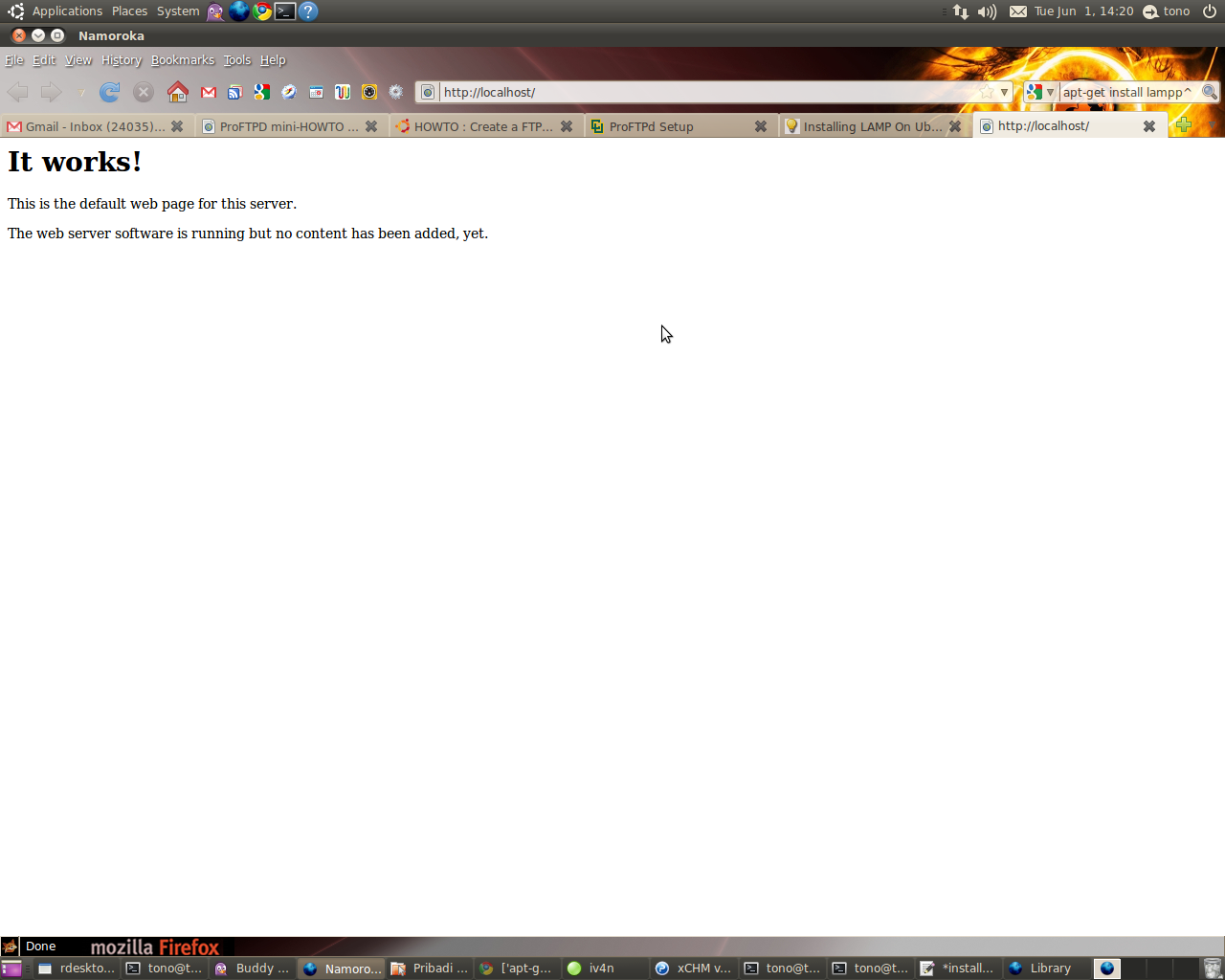
Untuk meyakinkan apakah instalasi Apache sudah berhasil atau belum.. dapat dilakukan pengetesan melalui browser dengan mengarahkan ke link berikut :
 
http://localhost

Bila muncul seperti gambar berikut berarti proses instalasi Apache webserver berhasil.


Install PHP
1. Buka konsol dari terminal kemudian ketikkan command berikut :
sudo apt-get install php5 libapache2-mod-php5

2. Restart webserver dengan menggunakan command :
sudo /etc/init.d/apache2 restart

Test PHP
1. Buat file testing.php pada direktori /var/www/ dengan cara
sudo vim /var/www/testing.php

2. Edit file tersebut dengan menambahkan
< ?php phpinfo(); ?>

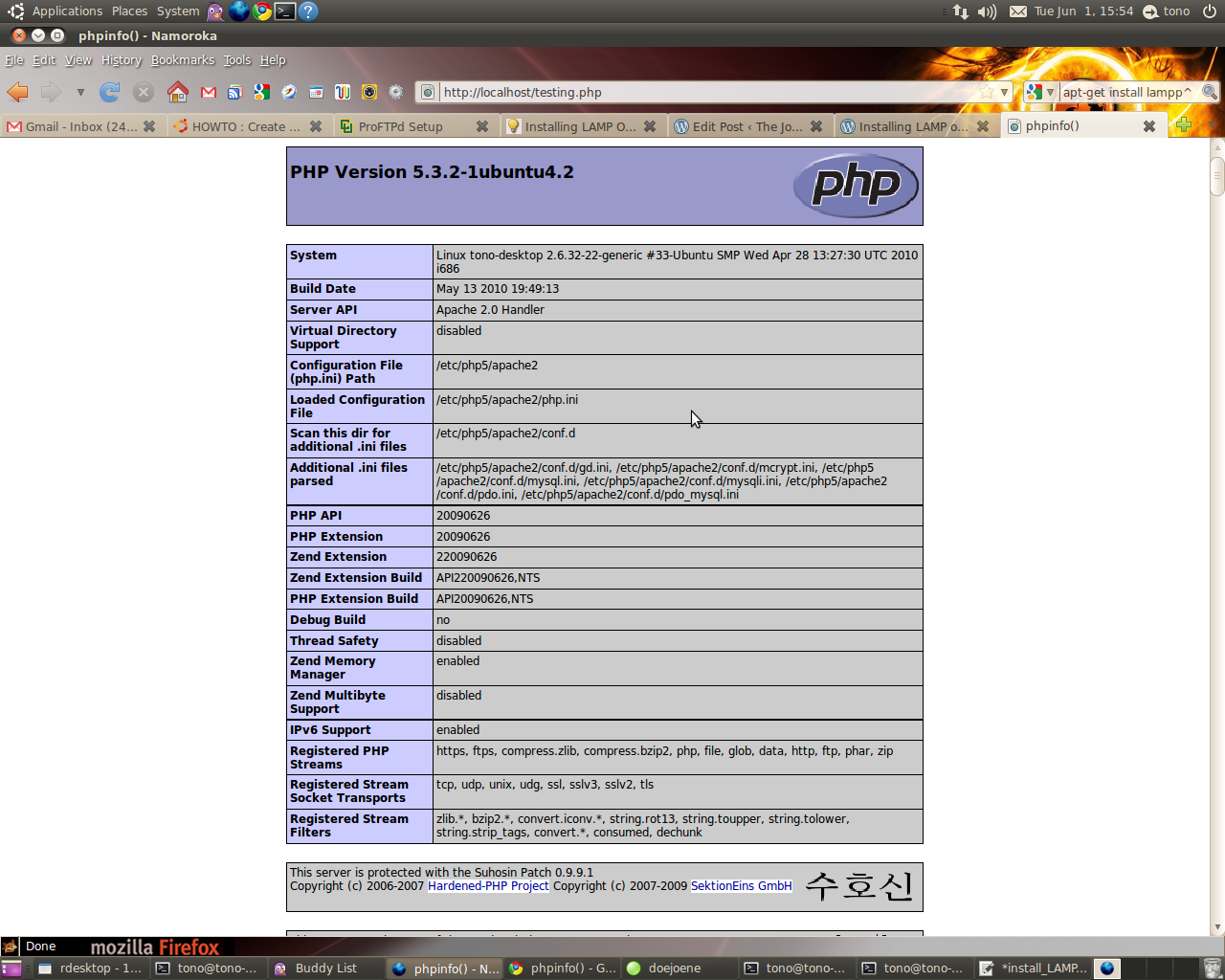
3. Cek pada browser ke dengan alamat :
http://localhost/testing.php
Bila instalasi PHP berjalan dengan baik maka akan muncul seperti pada gambar berikut :


Install MySQL
1. Install MySQL dari terminal dengan menggunakan :
sudo apt-get install mysql-server

2. Edit file /etc/mysql/my.cnf dengan menggunakan vim
sudo vim /etc/mysql/my.cnf
Kemudian rubah pada baris
bind-address = 127.0.0.1

menjadi :
bind-address = ip_address_anda

3. Membuat user root pada MySQL dari terminal :
mysql -u root
mysql> SET PASSWORD FOR 'root'@'localhost' = PASSWORD('passwordanda');
Rubah passwordanda dengan password yang anda inginkan.

4. Install aplikasi phpMyadmin agar memudahkan kita dalam mengedit database.
sudo apt-get install libapache2-mod-auth-mysql php5-mysql phpmyadmin 

Selanjutnya agar PHP dapat bekerja dengan MySQL edit file php.ini :
sudo vim /etc/php5/apache2/php.ini

Rubah baris berikut :
;extension=mysql.so
menjadi :
extension=mysql.so

Kemudian restart Apache anda :
sudo /etc/init.d/apache2 restart

have a nice day.. 

re+ thanks bro..

Jumat, 04 Februari 2011

Problem Install Ubuntu 10.10 di toshiba L510 intel core i3

sejak beberap bulan yang lalu saya mencari-cari problem yang terjadi di Laptop Toshiba seri Satellite L510 intel core i3 (karena tidak ada linux/kernel yang support dengan vga, chipset dan processornya) & ( Kernel iDeneb macOSX pun gagal total). selama punya laptop ini kondisinya sangat memprihatinkan, karena hanya bisa di install OS Windows 7 (no XP) & jajaran program applikasinya. Kondisi ini sangat kurang lengkap dengan adanya pekerjaan dibidang Network & programming yang tidak bisa maksimal. Alhasil VirtualBox menjadi satu-satunya cara untuk dapat install Opensource (linux & solaris & BSD ) sebagai sarana jembatan ke network & server yang saya bangun.

Alhasil, diakhir bulan januari kmarin permasalahan itupun selesai dengan coba untuk oprek-oprek system linux yang akan digunakan dengan mengandalkan teori lama. akan saya sharing beberapa trik yg saya pakai untuk mengatasi agar Toshiba L510 intel core i3 dapat berjalan mulus di linux ubuntu ( ujicoba pertama ) :

1. siapkan CD Installasi UBUNTU 10.10
2. Pasang booting laptop via CDROM
3. saat loading booting awal PRESS F6 (UNTUK PILIH LANGUAGE)
4. kemudia PRESS F6 lagi untuk memunculkan menu boot lalu pilih "acpi=off"
5. kemudian ikuti langkah installasinya seperti biasa
6. setelah selesai installasi, saat booting PRESS "E" lalu akan keluar menu boot baru
7. pilih line: Linux /boot/vmlinux-2.6.32......root=UID... PRESS "END" dari keyboard dan tambahkan dibaris paling akhirnya "acpi=off"
8. PRESS Ctrl+X dan kemudian boot
9. akhirnya sampai juga di Ubuntu Desktop (perjuangan belum selesai)
10.  buka "terminal" : Applications > Accessories > Terminal "
11. edit grub.conf dengan cara :
~$ sudo -i
~$ nano /boot/grub/grub.cfg   (enter)
12. cari baris ini :
### BEGIN /etc/grub.d/10_linux ###
menuentry 'Ubuntu, with Linux 2.6.35-25-generic' --class ubuntu --class gnu-linux --class gnu --class os {
        recordfail
        insmod part_msdos
        insmod ext2
        set root='(hd0,msdos4)'
        search --no-floppy --fs-uuid --set cc4dfdfd-f860-494f-9aab-91f7397d8585
        linux   /boot/vmlinuz-2.6.35-25-generic root=UUID=cc4dfdfd-f860-494f-9aab-91f7397d8585 ro   quiet splash acpi=off (ditambahkan acpi=off)
       initrd  /boot/initrd.img-2.6.35-25-generic
}

13. setelah ditambahkan "acpi=off" seperti contoh diatas PRESS CTRL+X - Yes
14. Restart Linux anda.
15. eng-ing-eng.. sudah siap perkerjaan kita, catatan: jangan lupa update grub bila sudah ada waktu : ~#apt-get update-grub
16. Heppy ending

Semoga cara diatas dapat berjalan baik pula di system anda & kemungkinan bisa diaplikasikan di beberapa linux lain yang ingin anda install di Toshiba core i3.

nantikan selanjutnya Install MacOSX ke Toshiba core i3.

Thank all

Regard
yudhax

Unlock/crack Modem ZTE622 IM2 untuk lain Kartu GSM

Pernah berlangganan im2 modem internet access?


dulu saya pernah, 2-3 tahun yang lalu modem ini "most wanted" org pada suka dan mencarinya, tetapi dengan berjalannya waktu, modem dari paket bundling perusahaan indos*t ini berstatus lock/terkunci. jadi tidaka akan bisa dipakai lagi kalau anda berhenti berlangganan dari paket im2. so... bagaimana mengatasinya?


demikian kisahnya:

berikut langkah2 meng-unlock modem 3G ZTE-MF622:


1. Downlot program DC - Unlocker dari salah satu link di bawah ini:


(dapat referensi dari blog kipul)
- http://www.mediafire.com/?lzlekm4lzby
- http://rs968.rapidshare.com/files/377202221/dccrap.zip

2. Selanjutnya anda bisa hubungkan Modem 3G ZTE MF622 ke PC, tapi sebelumnya ganti kartu GSM IM2nya dengan kartu GSM apa aja selain dari operator Indosat, misalkan axis, telkomsel atau XL (PENTING).
3. Ketika muncul program load dashboard modem berlogo IM2 close saja semuanya, langsung ditutup saja.

4. Ekstrak file yg sudah di download td unlock modem dccrap.zip.
5. Masuk ke dalam folder "unlock modem dccrap", kemudian jalankan program dccrap.exe
6. Ganti opsi Select Manufacturer nya menjadi ZTE dan ganti juga opsi Select Modelnya menjadi _Auto detect
7. Klik pada icon kaca pembesar dibawah, hingga kolom di bawah muncul tulisan:

DC - Unlocker 2 Client 1.00.0460

Detecting card :

selection :
manufacturer - ZTE datacards
model - Auto detect

Found modem : MF330
Model : ZTE MF622
IMEI : ..............
Firmware : ..............
SIM Lock status : locked


8. Terakhir, klik pada tombol Unlock (disebelah kanan atas), hingga muncul tulisan:

Unlocking, please wait ...

Card successfully unlocked !

Credits left : 1428100

Success ... setelah proses selesai. Cabut modem 3G ZTE MF622 dari PC, kemudian restart komputer anda. dan sekarang, anda bisa memanfaatkan modem 3G ZTE MF622 kamu dengan kartu operator lain. good luck


yudhax

Setting modem telkomflash Ubuntu 10.10

 Modem telkomsel flash seri E1775 / E1552 / E620

1. download : ( di http://packages.ubuntu.com/lucid/i386/usb-modeswitch/download )
ex:
~#wget http://debian.nctu.edu.tw/ubuntu//pool/universe/u/usb-modeswitch/usb-modeswitch_1.1.0-2_i386.deb

data modeswitch : (http://packages.ubuntu.com/lucid/all/usb-modeswitch-data/download )
ex:
~#wget http://www.club.cc.cmu.edu/pub/ubuntu//pool/universe/u/usb-modeswitch-data/usb-modeswitch-data_20100127-1_all.deb


2. Install :

# dpkg -i usb-modeswitch_1.1.0-2_i386.deb
# dpkg -i usb-modeswitch-data_20100127-1_all.deb

3. Masukkan Modem Huawei.

4. masuk ke : System --> Preference --> Network Connections --> Mobil Broadband --> Add --> pastikan modem huaweinya sidah terditeksi --> Forward --> Country (indonesia) -->> Profider Telkomsel --> Select Plan (pilih my plan not listen) --> isi APN dengan "internet" (tanpa kutip") --> Apply

5. Klik Connect automatically
Number = *99#
username = (kosong)
password = (kosong)
APN = internet
Available to all user = cecklist

APPLY

6. Oke happy enjoy ..

7. untuk matikan & hidupkan koneksi nya : klik kanan tanda wireless/connection network diatas lalu ada pilihan " enable mobile broadband " (v) jika aktif & hilangkan (v) jika off

yudhax

Minggu, 15 Februari 2009

Chating dalam CMD command Promt

1) Yang kita butuhkan IP Address and Command Prompt .

2) Open Notepad and tulis dibawah ini .....!

@echo off
:A
Cls
echo MESSENGER
set /p n=User:
set /p m=Message:
net send %n% %m%
Pause
Goto A


3) Now save this as "Messenger.Bat".

4) Open Command Prompt.

5) Drag this file (.bat file) over to Command Prompt and press Enter.

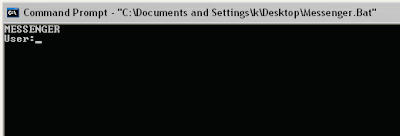
6) You would then see something like this:
 

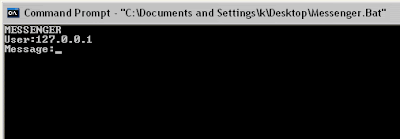
7) Now, type the IP Address of the computer you want to contact and press enter
You will see something like this:
 

8) Now all you need to do is type your message and press Enter.
Start Chatting.......!


Thank kev

Windows Genuine Hack

Membuat Windows Legal sendiri ...

Windows Genuine Hack:- 


1) Download "Windows.Genuine.Advantage.Validation..rar" 
2) Extract It. 
3) Run "installer.bat" file. 
4) Reboot. 
5) Enjoy Your Validated Windows.

http://rapidshare.com/files/115531401/Windows.Genuine.Advantage.Validation..rar

Jalankan Firefox dalam Firefox .. (hot)

How to run Firefox inside Firefox.?

Yup you can run Firefox inside firefox just by typing following url.

How about Opening Firefox inside Firefox which is again in another Firefox..?
Not bad huh? 
And its really easy too just type in this url in Firefox's address bar and there you go! 
Firefox inside Firefox!

copy paste following url in a web browser (mozilla firefox).

chrome://browser/content/browser.xul


Following is the screenshot of this trick (firefox in firefox in firefox, which is again in another firefox)-

Selasa, 13 Mei 2008

SMS Gateway with Gnokii and PlaySMS

WARNING !!!
———–
PlaySMS is not save for kids!
But if you’re a kid, and you can meet requirement’s below, you can use
PlaySMS, savely!
Kids must:
1. Not nervous when login to Linux console remotely
2. Able to read and understand README first, INSTALL and then FAQ in
this package
3. Able to use Yahoo! to send join PlaySMS mailing list, and ask good
questions
4. Be serious after this WARNING

REQUIREMENT
———–
Download PlaySMS : http://playsms.sourceforge.net/
Download Gnokii : http://www.gnokii.org/

Minimum Required Hardware
- Web servers hardware
- Disk freespace for software and data disk at least 10 MB
Minimum Required Software
- Operating System *NIX based (Linux preferred)
- Web Server (Apache preferred http://httpd.apache.org)
- Database Server MySQL 3.23.47 or latest stable release (http://
www.mysql.com)
- PHP 4.2.2 or latest stable release with mysql module enabled and CGI
version
(http://www.php.net)
Minimum Required Server Operator (or Developer)
- Understand howto make sure installed PHP has MySQL module enabled
(phpinfo)
- Understand howto create/drop MySQL database
- Understand howto insert SQL statement into created database
- OK to read README, INSTALL, FAQ and other docs :)

Gnokii’s Installation:
1. Extract gnokii source package somewhere (eg: /usr/local/src)
2. Configure it to make sure installation path is in /usr/local
# ./configure –prefix=/usr/local
Note: if you want to change to another directory, you better
understand how to
read source of /path_to_source_of_playsms/bin/* files written in bash
script
3. Make and make install, these actions should install gnokii to /usr/
local
# make
# make install
4. Enter directory named smsd in gnokii source directory, compile and
install smsd
Note: if you use gnokii version <>

PlaySMS Web Interface:
1. It is important to meet all minimum requiments above (Its a must!)
2. Setup a system user named ‘playsms’ to manage PlaySMS
# adduser playsms
# passwd playsms
Note: on some Linux distributions adduser and passwd combined
3. On most Linux distributions actions (2) will create system user and
group named playsms
with home directory /home/playsms, there you will install all PlaySMS
files
4. Create public_html on user’s home directory, if its not already
exists
# mkdir /home/playsms/public_html
5. Extract PlaySMS package somewhere (Place in /usr/local/src if you
want to)
tar -zxvf playsms-x.x.x.tar.gz
6. Copy ‘web’ directory to public_html directory and set owner back to
user playsms again
(for security reason)
# cp -rR web/* /home/playsms/public_html
# chown -R playsms /home/playsms/public_html
# chmod 701 /home/playsms
7. Setup database (import database)
# mysqladmin -u root -p create playsms
# mysql -u root -p playsms < /path_to_source_of_playsms/db/playsms.sql Note: you dont need to use MySQL root access nor this method to setup PlaySMS database, but this is beyond our scope, you should read MySQL manual for custom installation method 8. Edit config.php on playsms web directory (/home/playsms/public_html/ config.php) Please read and fill all fields required carefully 9. Enter bin directory and copy playsmsd and playsmsd_start to /usr/ local/bin # cd bin # cp playsmsd playsmsd_start /usr/local/bin/ 10. Enter /etc/init.d or /etc/rc.d/init.d and look for file rc.local, im sure you’ll found it. Edit that file and put “/usr/local/bin/ playsmsd_start” (without quotes) on the bottom of the file (before exit if theres exit). This way playsmsd_start will be run everytime the system startup 11 Browse http://localhost/~playsms and login using default
administrator user
username: admin
password: admin
12. At this point you should be able to logon PlaySMS webbased
interface.

NOTES
—–
1. It is VERY important to set these settings below on your php.ini
safe_mode = Off
register_globals = Off
magic_quotes_gpc = On
2. Dont forget to read FAQ and CHANGELOG carefully